WebDAV挂载/映射

WebDAV挂载/映射
Windows
打开 “计算机” ,点右键添加一个网络位置,按向导填入地址,用户名,密码。

挂载指定盘符:

net use Y: https://dav.engr-z.com/ /user:engrz /persistent:YES 密码
其中 qizheng 是我的用户名
密码把 password 换成对应的密码。
/persistent 表示保存映射,下次开机还在。
执行完,打开资源管理器,可以看到磁盘映射了。
如果下次开机,发现不能打开磁盘,访问失败,可以检查 WebClient 服务是否开启。

从Windows Vista起,微软就禁用了http形式的基本WebDAV验证形式(KB841215),必须使用https连接。我们可以修改注册表……

HKEY_LOCAL_MACHINE\SYSTEM\CurrentControlSet\Services\WebClient\Parameters
找到BasicAuthLevel把这个值从1改为2,然后进控制面板,服务,把WebClient服务重启(没有启动的就启动它)。

在某些版本的 Windows 操作系统中,WebDAV 驱动器的最大文件大小被限制为 50MB。如果你试图复制超过 50MB 大小的文件,Windows 就会弹出错误提示框。当然,这个限制是可以通过修改注册表来消除的。

将注册表中位于
HKLM\SYSTEM\CurrentControlSet\Services\WebClient\Parameters\FileSizeLimitInBytes
处的键值由 50000000 (50MB) 修改为更大的数值。最大修改为:4294967295(0xffffffff)字节,即4G。

这里推荐使用免费软件 RaiDrive ,通过 RaiDrive 映射的磁盘,没有 http 和 上传文件大小限制,无需修改注册表。

RaiDrive 是一款能够将一些网盘映射为本地网络磁盘的工具,支持 Google Drive、Google Photos、Dropbox、OneDrive、FTP、SFTP、WebDAV。

下载地址:https://www.raidrive.com

Linux
Linux 的文件管理工具大多都支持 WebDAV ,以 Ubuntu 为例:

还可以使用命令挂载,需要安装 davfs2 :

apt install davfs2
执行命令后系统会自动安装,出现以下提示,选是。

挂载:

sudo mount -t davfs http://dav.engr-z/ ./webdav/

WebDAV挂载/映射

WebDAV挂载/映射
Windows
打开 “计算机” ,点右键添加一个网络位置,按向导填入地址,用户名,密码。

挂载指定盘符:

net use Y: https://dav.engr-z.com/ /user:engrz /persistent:YES 密码
其中 qizheng 是我的用户名
密码把 password 换成对应的密码。
/persistent 表示保存映射,下次开机还在。
执行完,打开资源管理器,可以看到磁盘映射了。
如果下次开机,发现不能打开磁盘,访问失败,可以检查 WebClient 服务是否开启。

从Windows Vista起,微软就禁用了http形式的基本WebDAV验证形式(KB841215),必须使用https连接。我们可以修改注册表……

HKEY_LOCAL_MACHINE\SYSTEM\CurrentControlSet\Services\WebClient\Parameters
找到BasicAuthLevel把这个值从1改为2,然后进控制面板,服务,把WebClient服务重启(没有启动的就启动它)。

在某些版本的 Windows 操作系统中,WebDAV 驱动器的最大文件大小被限制为 50MB。如果你试图复制超过 50MB 大小的文件,Windows 就会弹出错误提示框。当然,这个限制是可以通过修改注册表来消除的。

将注册表中位于
HKLM\SYSTEM\CurrentControlSet\Services\WebClient\Parameters\FileSizeLimitInBytes
处的键值由 50000000 (50MB) 修改为更大的数值。最大修改为:4294967295(0xffffffff)字节,即4G。

这里推荐使用免费软件 RaiDrive ,通过 RaiDrive 映射的磁盘,没有 http 和 上传文件大小限制,无需修改注册表。

RaiDrive 是一款能够将一些网盘映射为本地网络磁盘的工具,支持 Google Drive、Google Photos、Dropbox、OneDrive、FTP、SFTP、WebDAV。

下载地址:https://www.raidrive.com

Linux
Linux 的文件管理工具大多都支持 WebDAV ,以 Ubuntu 为例:

还可以使用命令挂载,需要安装 davfs2 :

apt install davfs2
执行命令后系统会自动安装,出现以下提示,选是。

挂载:

sudo mount -t davfs http://dav.engr-z/ ./webdav/

服务器部署GO开发的WebDav秒变私人云

服务器部署GO开发的WebDav秒变私人云

发布于 

之前介绍过Nginx模块实现是Webdav 这次介绍一个由Go语言编写的WebDav服务端搭建过程,个人感觉比其他众方式都简单实用,单文件可执行,不需要额外配置。

服务器选用腾讯云香港轻量,回国线路优秀,30M带宽足够使用,部署好Webdav,挂载在手机上不要太爽。

正文:

首先放上本次的主角,github链接如下

https://github.com/hacdias/webdav

它支持各个系统及平台,windows端部署也是大同小异,毕竟只需要一个可执行文件以及一个配置文件即可

首先先建立一个运行目录,并下载服务端

mkdir /home/webdav

#尽量不在root目录,以避免权限问题

wget https://github.com/hacdias/webdav/releases/download/v4.1.0/linux-amd64-webdav.tar.gz

tar -xzvf linux-amd64-webdav.tar.gz

#解压文件

然后新建下配置文件,配置文件支持yaml json toml等配置文件,注意编码一定要为utf-8

使用vi vim nano等文本编辑工具编辑config.yaml粘贴以下内容,并修改相应的内容

# Server related settings
address: 0.0.0.0
port: 51234
auth: true
tls: false
cert: cert.pem
key: key.pem

# Default user settings (will be merged)
scope: .
modify: true
rules: []

users:
– username: user1
password: user1
scope: /home/webdav
– username: user2
password: user2
scope: /home/webdav

同时密码支持bcrypt加密具体看github说明去,这里提供一个在线生成bcrypt加密的地址https://bcrypt-generator.com/

好的,现在你可以尝试使用以下命令开启你的服务端了

webdav –config config.yaml

确认没问题后可以使用Systemd来控制开机自启和后台运行

使用vi vim nano等编辑器编辑 /lib/systemd/system/webdav.service文件写入以下内容

[Unit]
Description=WebDAV server
After=network.target

[Service]
Type=simple
User=root
ExecStart=/home/webdav/webdav –config /home/webdav/config.yaml
Restart=on-failure

[Install]
WantedBy=multi-user.target

注意把路径修改为你真实的可执行文件及配置文件路径

systemctl start webdav

#启动webdav

systemctl enable webdav

#设置开机启动

好了,使用你的客户端尝试连接即可!

电脑端可以使用raidrive 手机端推荐ES文件浏览器,觉得存储空间不够的可以再去购买OSS进行挂载。

来源:https://great999.cn/28.html

  • 文档
  • 区块

未选择区块。已发布服务器部署GO开发的WebDav秒变私人云 已被发布。

现在要做什么?文章地址查看文章复制链接总是显示发布前检查。

  • 文档

服务器部署GO开发的WebDav秒变私人云

服务器部署GO开发的WebDav秒变私人云

发布于 

之前介绍过Nginx模块实现是Webdav 这次介绍一个由Go语言编写的WebDav服务端搭建过程,个人感觉比其他众方式都简单实用,单文件可执行,不需要额外配置。

服务器选用腾讯云香港轻量,回国线路优秀,30M带宽足够使用,部署好Webdav,挂载在手机上不要太爽。

正文:

首先放上本次的主角,github链接如下

https://github.com/hacdias/webdav

它支持各个系统及平台,windows端部署也是大同小异,毕竟只需要一个可执行文件以及一个配置文件即可

首先先建立一个运行目录,并下载服务端

mkdir /home/webdav

#尽量不在root目录,以避免权限问题

wget https://github.com/hacdias/webdav/releases/download/v4.1.0/linux-amd64-webdav.tar.gz

tar -xzvf linux-amd64-webdav.tar.gz

#解压文件

然后新建下配置文件,配置文件支持yaml json toml等配置文件,注意编码一定要为utf-8

使用vi vim nano等文本编辑工具编辑config.yaml粘贴以下内容,并修改相应的内容

# Server related settings
address: 0.0.0.0
port: 51234
auth: true
tls: false
cert: cert.pem
key: key.pem

# Default user settings (will be merged)
scope: .
modify: true
rules: []

users:
– username: user1
password: user1
scope: /home/webdav
– username: user2
password: user2
scope: /home/webdav

同时密码支持bcrypt加密具体看github说明去,这里提供一个在线生成bcrypt加密的地址https://bcrypt-generator.com/

好的,现在你可以尝试使用以下命令开启你的服务端了

webdav –config config.yaml

确认没问题后可以使用Systemd来控制开机自启和后台运行

使用vi vim nano等编辑器编辑 /lib/systemd/system/webdav.service文件写入以下内容

[Unit]
Description=WebDAV server
After=network.target

[Service]
Type=simple
User=root
ExecStart=/home/webdav/webdav –config /home/webdav/config.yaml
Restart=on-failure

[Install]
WantedBy=multi-user.target

注意把路径修改为你真实的可执行文件及配置文件路径

systemctl start webdav

#启动webdav

systemctl enable webdav

#设置开机启动

好了,使用你的客户端尝试连接即可!

电脑端可以使用raidrive 手机端推荐ES文件浏览器,觉得存储空间不够的可以再去购买OSS进行挂载。

来源:https://great999.cn/28.html

xshell在vim下visual模式,不弹出选择菜单


操作系统:Debian9

修改 【defaults.vim】文件

vim /usr/share/vim/vim80/defaults.vim

定位到70行上下,找到如下地方

if has('mouse')
set mouse=a
endif

把【set mouse=a】修改为【set mouse-=a】

if has('mouse')
set mouse-=a
endif

按【Esc】键,输入【:wq】保存并退出文件

修改完即可在xshell下,快乐的复制粘贴了

搬瓦工 VPS 一键 DD 安装 Windows 系统教程

1、重装系统

在搬瓦工的 KiwiVM 后台,把系统重装为 Debian 9 x64 位。

  1. 进入搬瓦工后台地址:https://bwh81.net/clientarea.php?action=products
  2. 进入这个地址后,点击对应的 VPS 的 KiwiVM Control Panel 面板,进入 KiwiVM
  3. 点击 KiwiVM 面板上的 stop 按钮,先把 VPS 关机
  4. 再点击左侧的 Install New OS,选择 debian-9-x86_64,进行重装

2、一键 dd 安装 Windows

重装之后,通过 SSH 登录到你的搬瓦工 VPS,登录之后,输入下面的命令:

wget -qO DebianNET.sh qiu.sh/dd && bash DebianNET.sh -dd "https://moeclub.org/onedrive/IMAGE/Windows/win7emb_x86.tar.gz"

注意:

  • 上面的命令安装的是 Windows 7 简化版,如果需要安装其他系统,请参考本文下方提供的更多镜像

然后回车,等待即可。一般一分钟左右之后会断开 SSH 连接,是正常现象。然后我们需要等待半小时到一小时左右。

完成之后,我们就可以使用远程桌面软件登录了,比如 Microsoft Remote Desktop,macOS 上有 Parallels Client 可以用,是免费的。输入我们的搬瓦工 VPS 的 IP 地址,进行登录。默认的账户密码为:

  • 账户:Administrator
  • 密码: Vicer

建议登录之后及时修改密码。登录之后的操作就和 Windows 的操作一样了,就不用多赘述了。

但是需要注意的是,最好不要安装最新的,否则可能会导致 CPU 超标而被暂停。

3、注意事项

A、登录之后,会发现磁盘只有 10GB 可用,我们需要进入控制面板的磁盘格式化选项里面,把 C盘扩展一下,这个操作应该是基本操作,如果不会的话自己搜索一下就行。

B、如果觉得网速比较慢,原因是因为 Windows 默认的拥塞控制机制不好,解决方法很简单,先进入设置里面,更新系统,把所有系统更新都装上。装好更新之后,打开 Powershell,输入下面的命令:

Set-NetTCPSetting -SettingName InternetCustom -CongestionProvider LEDBAT

然后回车,重启即可。

二、更多 Windows DD 包

下面这两个来自 Vicer 大佬:

  • Windows 7:https://moeclub.org/onedrive/IMAGE/Windows/win7emb_x86.tar.gz
  • Windows 8:https://moeclub.org/onedrive/IMAGE/Windows/win8.1emb_x64.tar.gz

默认账户:Administrator,默认密码:Vicer

下面这几个来自秋水大佬:

  • https://delivery.yuntu.moe/teddysun/cn_windows2019.gz
  • https://delivery.yuntu.moe/teddysun/en_windows2019.gz
  • https://delivery.yuntu.moe/teddysun/ja_windows2019.gz
  • https://delivery.yuntu.moe/teddysun/cn_windows2016.gz
  • https://delivery.yuntu.moe/teddysun/en_windows2016.gz
  • https://delivery.yuntu.moe/teddysun/ja_windows2016.gz
  • https://delivery.yuntu.moe/teddysun/cn_windows2012r2.gz
  • https://delivery.yuntu.moe/teddysun/en_windows2012r2.gz
  • https://delivery.yuntu.moe/teddysun/ja_windows2012r2.gz

默认账户:administrator,默认密码:Password147

使用方法:把上面的 Windows 包的地址替换掉安装命令里的地址即可。

三、更多安装方法详解

由 Vicer 大佬提供的安装方法:

wget --no-check-certificate -qO InstallNET.sh 'https://moeclub.org/attachment/LinuxShell/InstallNET.sh' && bash InstallNET.sh -dd '[Windows dd包直连地址]'

由秋水大佬整理的方法:

1,在基于 virtio 的 KVM 上安装过程
选 CentOS 7 或 Debian 9 系统。内存不能太小,建议 4GB 起步。用 root 用户 ssh 进去后执行以下的命令,然后静静等待即可。
安装速度取决于网络下载镜像的速度,基本上等待 15 – 60 分钟后,再次打开 VNC 就能看到熟悉的 Windows 登录界面了。

wget -qO DebianNET.sh qiu.sh/dd && bash DebianNET.sh -dd "DD download URL"

注:DebianNET.sh 脚本由 Vicer 开发,参考网址:https://moeclub.org

2,在 Kimsufi 的服务器上安装过程
进入救援模式后,用 root 用户 ssh 进去后执行以下的命令,然后静静等待即可。

wget -O- "DD download URL" | gunzip | dd of=/dev/sda

注:关于 Kimsufi 的服务器如何进入救援模式,网上有很多图文教程,一搜便知。

最新V2Ray搭建图文教程,V2Ray一键搭建脚本!

V2Ray搭建教程

一键搭建V2Ray,小白福利一条命令搞定V2Ray搭建,最详细的V2Ray图文教程!

第一部分:环境信息

  • 服务器系统:CentOS 7 以上版本系统兼容本教程
  • VPS:我使用的是 搬瓦工(BandwagonHost)
  • 手机和电脑都支持搭建

第二部分:创建服务器

已有服务器的同学可以跳过这部分,没有服务器的同学可以先创建服务器,我使用的是搬瓦工。

一、注册搬瓦工(BandwagonHost)账号

1.进入官网

首先进入官网首页:搬瓦工(BandwagonHost) ,然后点击顶部的”Register”按钮进行注册。

2.填写注册信息

上图中的邮箱(Email Address)、密码(Password)、确认密码(Confirm Password)请认真填写,其他随便填。可以填真实信息。

勾选下面的“I have read and agree to the Terms of Service”,最后点击“Submit”按钮,注册后默认登录成功,接下来就可以选择你的VPS方案了。

二、选择搬瓦工VPS方案

个人只推荐,$169.99/年的 DC6 CN2 GIA-E 套餐。或偶尔会有的限量版套餐。

CN2 GIA-E(最推荐) 2核 1GB 20GB 2.5Gbps 1TB 日本或洛杉矶 电信CN2 GIA-E $49.99/季度 $169.99/年 购买
CN2 GIA-E(限量版) 1核 1GB 20GB 1Gbps 500G 日本或洛杉矶 电信CN2 GIA-E $89.99/年 购买

选择方案购买后在后台自行切换机房位置。

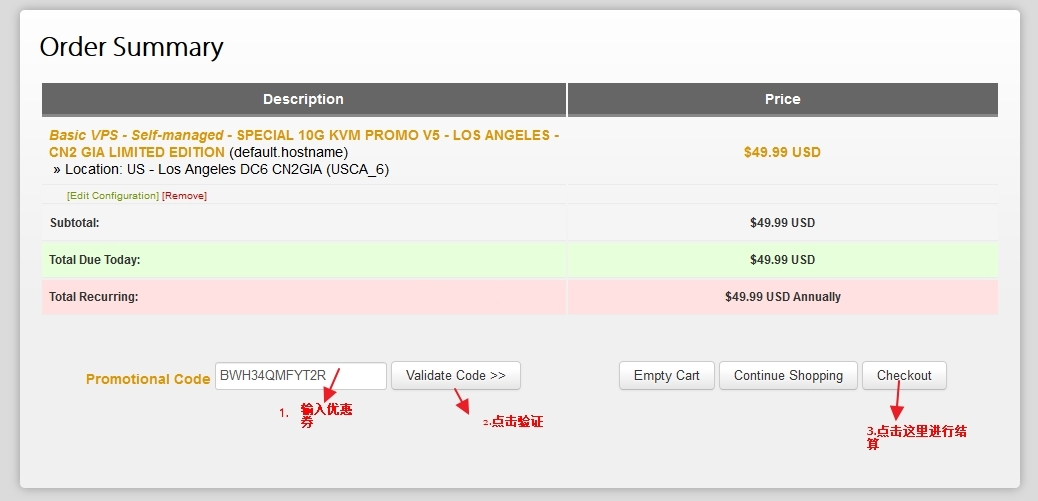
三、添加到购物车并输入优惠券结算

全网最高优惠:BWH3HYATVBJW,优惠力度:6.58%。

新年优惠:BWHNY2022,优惠力度:12.22%。到期续费时也可用该优惠。

此图像的alt属性为空;文件名为post-1058-603e094370f7e.

在上图所示界面中输入优惠码,并点击右侧验证按钮”Validate Code”,最后点击”Checkout”进行结算即可。

四、支付完成后,查看服务

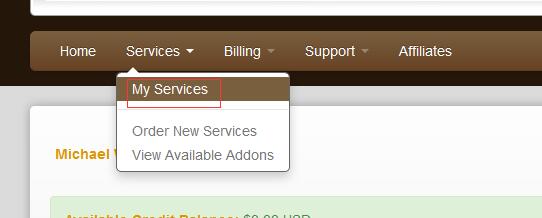
1.点击上部导航

banwagonhost-7.jpg

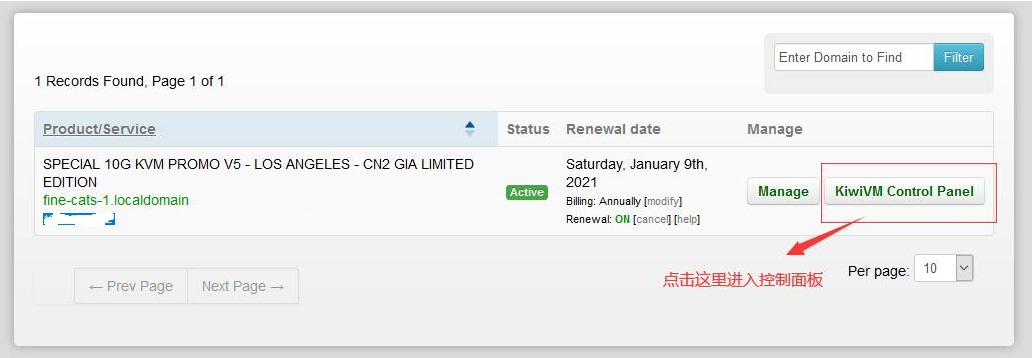
2.进入控制面板

banwagonhost-8.jpg

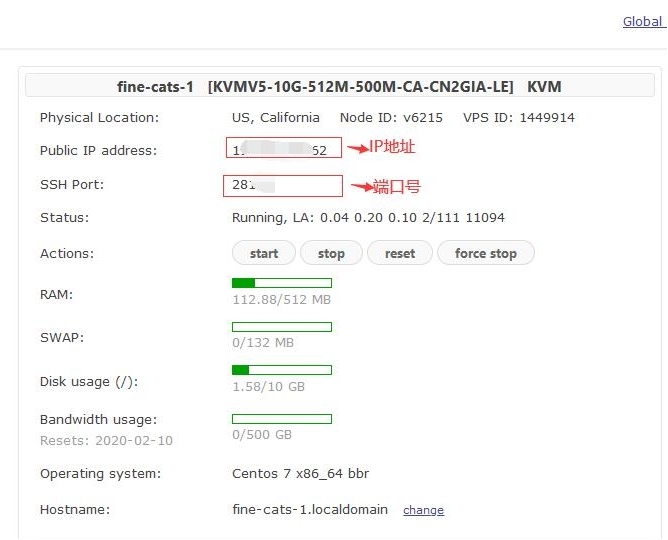
3.查看VPS信息

banwagonhost-9.jpg

上图中,你可以看到VPS的IP地址、端口信息,这些信息后面进行远程连接时用得到,另外,密码在你的注册邮箱里会收到一封邮件(一共收到两个邮件,其中一个有root用户的密码,收不到也没关系,可以在控制面板右侧重置),默认初始密码是一串随机字符,为了方便记忆,我们在使用xshell进行连接后再进行更改为我们方便记忆的。

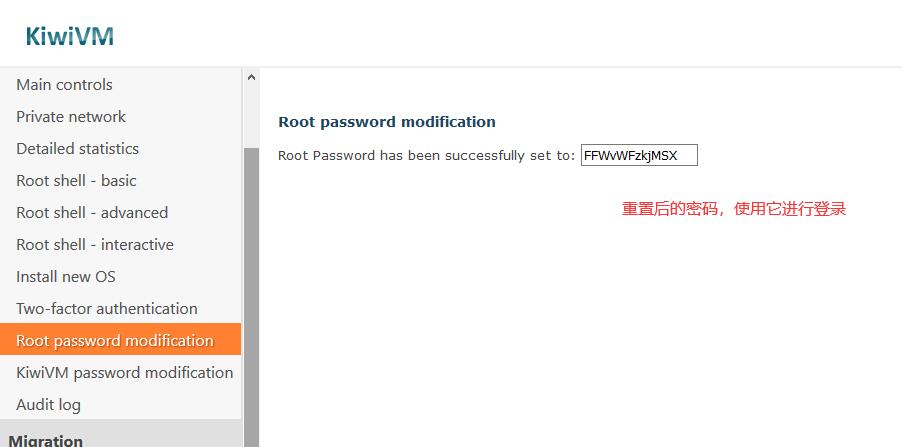
4.重置密码

如果你忘记初始密码,或者没收到邮件,可以在控制面板右侧导航进行重置,重置后也是一串随机字符,需要你使用它照着下面的xshell连接之后进行修改为自己方便记忆的密码。

banwagonhost-10.jpg

连接SSH, 可以使用XShell进行使用

电脑用XShell连接服务器,教程如下

第四部分:V2Ray搭建

新的一键V2Ray脚本,经过笔者的测试,安装简单方便,自动关闭防火墙,自动安装BBR加速,因此推荐大家使用!

安装命令:

输入以下命令,回车执行(shift+insert可粘贴)

显示一下信息代表安装成功(可直接用以下配置进行连接)(以下配置在链接时使用):

配置文件要注意(建议直接复制安装结果中 vmess://**** 地址,直接导入,避免自己填配置出错):

Network(传输协议): tcp
type(伪装类型):none
不对的话连不上!!!

好了到这里我们就搭建成功了(^▽^)

相关命令:

v2ray info 查看 V2Ray 配置信息
v2ray config 修改 V2Ray 配置
v2ray link 生成 V2Ray 配置文件链接
v2ray infolink 生成 V2Ray 配置信息链接
v2ray qr 生成 V2Ray 配置二维码链接
v2ray ss 修改 Shadowsocks 配置
v2ray ssinfo 查看 Shadowsocks 配置信息
v2ray ssqr 生成 Shadowsocks 配置二维码链接
v2ray status 查看 V2Ray 运行状态
v2ray start 启动 V2Ray
v2ray stop 停止 V2Ray
v2ray restart 重启 V2Ray
v2ray log 查看 V2Ray 运行日志
v2ray update 更新 V2Ray
v2ray update.sh 更新 V2Ray 管理脚本
v2ray uninstall 卸载 V2Ray

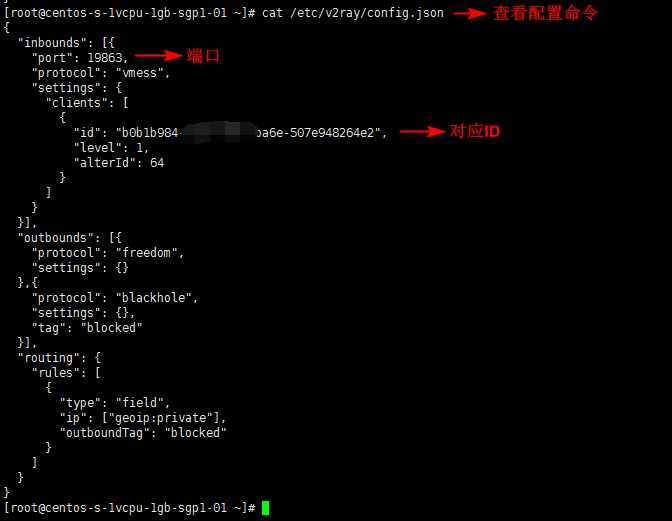
vmess协议配置

查看配置文件(该配置在后面链接时使用):

14.png

第五部分:客户端链接V2Ray

各平台的v2ray客户端地址:

Windows: https://github.com/2dust/v2rayN/releases

Andriod: https://github.com/2dust/v2rayNG/releases

How to fix ‘This file does not have a program associated with it’ error?

  • How to fix ‘This file does not have a program associated with it’ error?

    By Eunice Samson |  August 15, 2018 | greater than 5 minutes

    It can be frustrating when you can’t open a file that holds the information that you urgently need. Some users complained that they had encountered this problem on Windows 10. When they tried to run some applications, they would get an error message which said, “This file does not have a program associated with it for performing this action.” Here are some issues related to the error:

    • The issue can affect different applications, including Excel, Explorer, and Adobe Reader, among others. When this happens to you, be sure to run SFC and DISM scans.
    • In some cases, the error message can appear while you’re trying to open a USB drive. Your AutoPlay settings likely caused this. You can try disabling the feature to fix this.
    • The error message can also prevent you from launching OneDrive. If you encounter this issue, you must learn how to set up file associations in Windows 10 correctly.
    • It is worth noting that the problem can affect not only Windows 10, but also older versions like Windows 8.1 and 7. Our solutions work best for Windows 10, but they can also be used for previous versions of the operating system.

    If you want to learn how to fix This file does not have a program associated with it issue on Windows 10, you’ve come to the right place. Go through our solutions to discover the one that will get rid of the error completely.

    Method 1: Creating a New Windows User Account

    Some users claimed that the there is an easy way to get rid of this error. They reported that creating a new Windows user account had fixed the problem. To do that, follow these instructions:

    1. Click the Search icon on your taskbar.
    2. Type “settings” (no quotes), then press Enter.
    3. Select Accounts.
    4. Go to the left-pane menu, then click Family & Other People.
    5. Click Add Someone Else to this PC.
    6. Select ‘I don’t have this person’s sign-in information.’
    7. Choose ‘Add a user without a Microsoft account.’
    8. Submit the necessary details to create a new account, then click Next.

    Method 2: Adding your User Account to the Administrators Group

    You can also try adding your user account to the Administrators group. Some users reported that this had helped them resolve the problem. You can add your user account to the Administrators group by following these steps:

    1. On your keyboard, press Windows Key+R. This should open the Run dialog box.
    2. Type “lusrmgr.msc” (no quotes), then press Enter.
    3. Go to the left-pane menu, then select the Groups folder.
    4. Go to the right pane, then double-click the Administrators group.
    5. Once the Properties window shows up, click the Add button.
    6. Click the box below the ‘Enter the object names’ section. Submit your username, then click Check Names. Click OK once everything is in order. You can also manually search for your username by clicking the Advanced button, then selecting Find Now.
    7. After following those steps, your account will be added to the Administrators group. Save the changes by clicking Apply and OK.

    It is also advisable to restart your computer to ensure that the changes will take effect.

    Method 3: Modifying your Registry

    Before you proceed, please be warned that the registry is a sensitive database. That said, making the smallest error can cause system instability. So, you should only try the following steps if you are confident that you will be able to complete the instructions successfully. We also recommend creating a backup of your registry. This way, you will be able to undo the changes in case anything goes wrong. Here are the steps in editing your registry:

    1. Press Windows Key+R on your keyboard to launch the Run dialog box.
    2. Type “regedit” (no quotes), then press Enter.
    3. Navigate to this path: \HKEY_CLASSES_ROOT\lnkfile
    4. Go to the right pane, then check if the IsShortcut value is available. If it is missing, click an empty space on the right pane, then select New and String Value. Make sure to name the new string value as IsShortcut.
    5. Once you’re done, close the registry editor.

    Some users recommended performing the following:

    1. Once the registry is up, navigate to this path: \HKEY_CLASSES_ROOT\CLSID\{20D04FE0-3AEA-1069-A2D8-08002B30309D}\shell\Manage\command
    2. Go to the right pane, then double-click (Default).
    3. Set the value data to: %SystemRoot%\system32\CompMgmtLauncher.exe
    4. Save the changes by clicking OK.

    Method 4: Removing Certain Keys from the Registry

    You can follow the steps in this solution if you are having trouble opening any folder on your computer. You must delete certain registry entries to fix the issue. Here are the steps:

    1. Open the Run dialog box by pressing Windows Key+R on your keyboard.
    2. Go to the left pane and navigate to this path: HKEY_CLASSES_ROOT\Directory\shell
    3. Expand the contents of the Shell key, then delete the Find and CMD keys.
    4. Once you’re done, exit the registry.

    Method 5: Performing SFC and DISM Scans

    In some cases, the file association error is caused by corrupted system files. There are various reasons why this happens, and it is advisable for you to perform SFC and DISM scans to get rid of it. Simply follow these instructions:

    1. On your keyboard, press Windows Key+X.
    2. Select Command Prompt (Admin) or PowerShell (Admin).
    3. Once Command Prompt is up, type “sfc /scannow” (no quotes), then press Enter.
    4. The SFC scan should now begin. The process may take around 15 minutes. So, just wait until it is complete and do not interrupt it.

    Once the SFC scan is finished, check if the error is gone. If it is still there, we recommend performing a DISM scan. Just follow these instructions:

    1. Run Command Prompt as an administrator.
    2. Type “DISM /Online /Cleanup-Image /RestoreHealth” (no quotes), then hit Enter.
    3. The DISM scan should now commence. Keep in mind that the process can take longer to complete.

    Once the DISM scan is finished, check if the problem persists.

    Method 6: Disabling AutoPlay

    As we’ve mentioned, the file association error may have something to do with your AutoPlay settings. So, you can try disabling the feature completely to fix the problem. To do that, simply follow these steps:

    1. On your keyboard, press Windows Key+S.
    2. Type “Settings” (no quotes), then hit Enter.
    3. Click Devices.
    4. Go to the left-pane menu, then click AutoPlay.
    5. Go to the right pane, then disable the ‘Use AutoPlay for all media devices’ option.
    6. Make sure that the Removable Drive and Memory Card are set to ‘Take no Action’.

    Method 7: Resetting File Association

    Windows is automatically set to open files, using its default programs. However, most users who prefer third-party applications tend to change these settings. Sometimes, doing this can lead to a string of errors, including the one we’re discussing in this article. So, you might ask, “How can I reset a file association?” Well, the process is simple. Just follow at the instructions below:

    1. Go to your taskbar and click the Search icon.
    2. Type “settings” (no quotes), then press Enter.
    3. Once the Settings window is open, click Apps.
    4. Go to the left-pane menu, then select Default Apps.
    5. Go to the right pane, then scroll down until you see the ‘Reset to the Microsoft recommended defaults’ section.
    6. Click the Reset button.

    Once you’ve completed these steps, you should be able to resolve the file association problem completely.

    If you notice that it still takes longer for applications or folders to open, it is possible that disk fragmentation caused the slowdown. In this case, we recommend usingAuslogics Disk Defrag Pro. The tool allows you to optimize file placement on your hard drive, ensuring the most efficient operation and faster access.